

One clear question. In Ask mode, Outbound asks about connections no rule covers. You see the app, who signed it, where it’s going and whether that server belongs to the same developer.
Founding offer$29 for the first 50 licences, then $39First 50 licences: $29
Choose where your apps are allowed to connect.
See every app that reaches the internet, where it goes and how much it sends. Allow or block any of it in a click.
- No account, no sign-up
- One-time, no subscription
- Full refund within 14 days


macOS 14 or later, Apple silicon and Intel. Screenshots from the app; the connections are examples.
Right now
Your apps connect to more than you think.
Updaters and ad networks reach out in the background all day, along with telemetry: the usage and crash reports apps send home. You can want the app without wanting every connection it makes.
The firewall built into macOS handles incoming connections. Outbound handles the outgoing ones. You see each connection as it happens, keep the app, and stop the destinations you don’t want.
Safari
- www.apple.comAllowed
Example connections
Google Chrome
- accounts.google.comAllowed
- ads.doubleclick.netBlocked
- google-analytics.comBlocked
Example connections
Zoom
- telemetry.zoom.usBlocked
Example connections
Spotify
- api.spotify.comAllowed
Example connections
Firefox
- incoming.telemetry.mozilla.orgBlocked
Example connections
Discord
- gateway.discord.ggAllowed
Example connections
Figma
- www.figma.comAllowed
Example connections
Notion
- msgstore.www.notion.soAllowed
Example connections
Docker
- registry-1.docker.ioAllowed
Example connections
Point atTap an app to see where it connects. Example data.
An app reaches out. You decide.
In Ask mode, Outbound checks with you before an app connects somewhere new. Answer once, or save your answer as a rule. The menu bar shows what it allowed and blocked.
Example alert.
Your first days
Quiet at first. Then it’s your call.
Outbound watches before it asks, and you choose when it gets stricter.
From the first day
Learn
Connections that match no rule go through and land in Review, so you see what your apps do before you decide anything. Your own rules still apply.
After a few days
Ask
Outbound suggests Ask. Keep what Learn recorded as rules, and from then on it only asks about what’s new.
Whenever you want
Strict
Connections that match no rule are blocked without a question. Your rules still apply, and the menu bar switches between the three.
In Ask mode, a question you leave unanswered lets the connection through by default after 60 seconds (8 for UDP) and puts it in Review. You can have it blocked instead.
Up close
Get to know Outbound.
Real screenshots of Outbound 1.2, with example data.
Coding agents
Coding agents, by name.
Telemetry
Telemetry, off at the source.
Your rules
Type a rule, check the fields.
One click away
All of it from the menu bar.
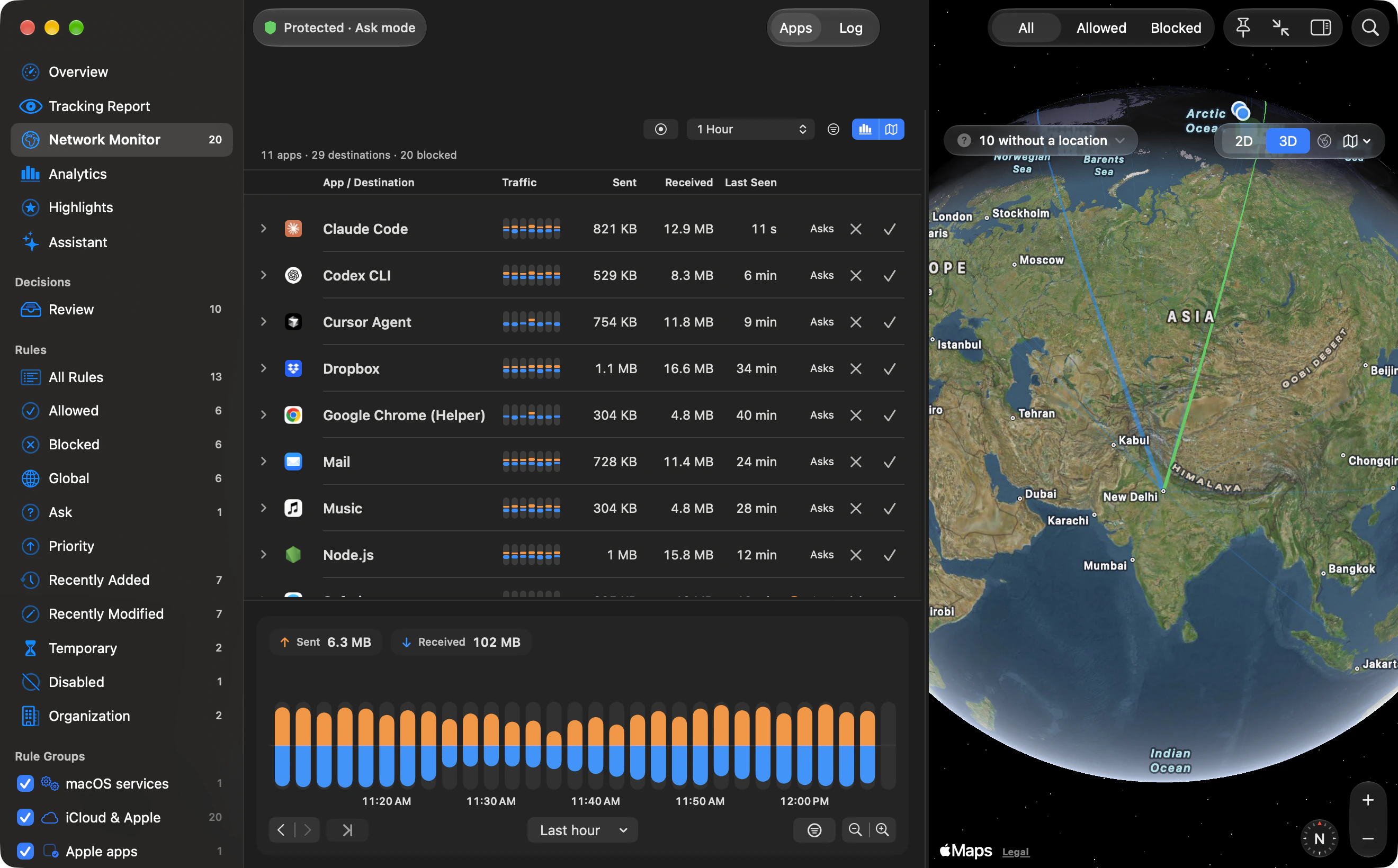
Network Monitor
Flat map or 3D globe.
Profiles
Rules for each place you work.
Coding agents
Coding agents, by name.
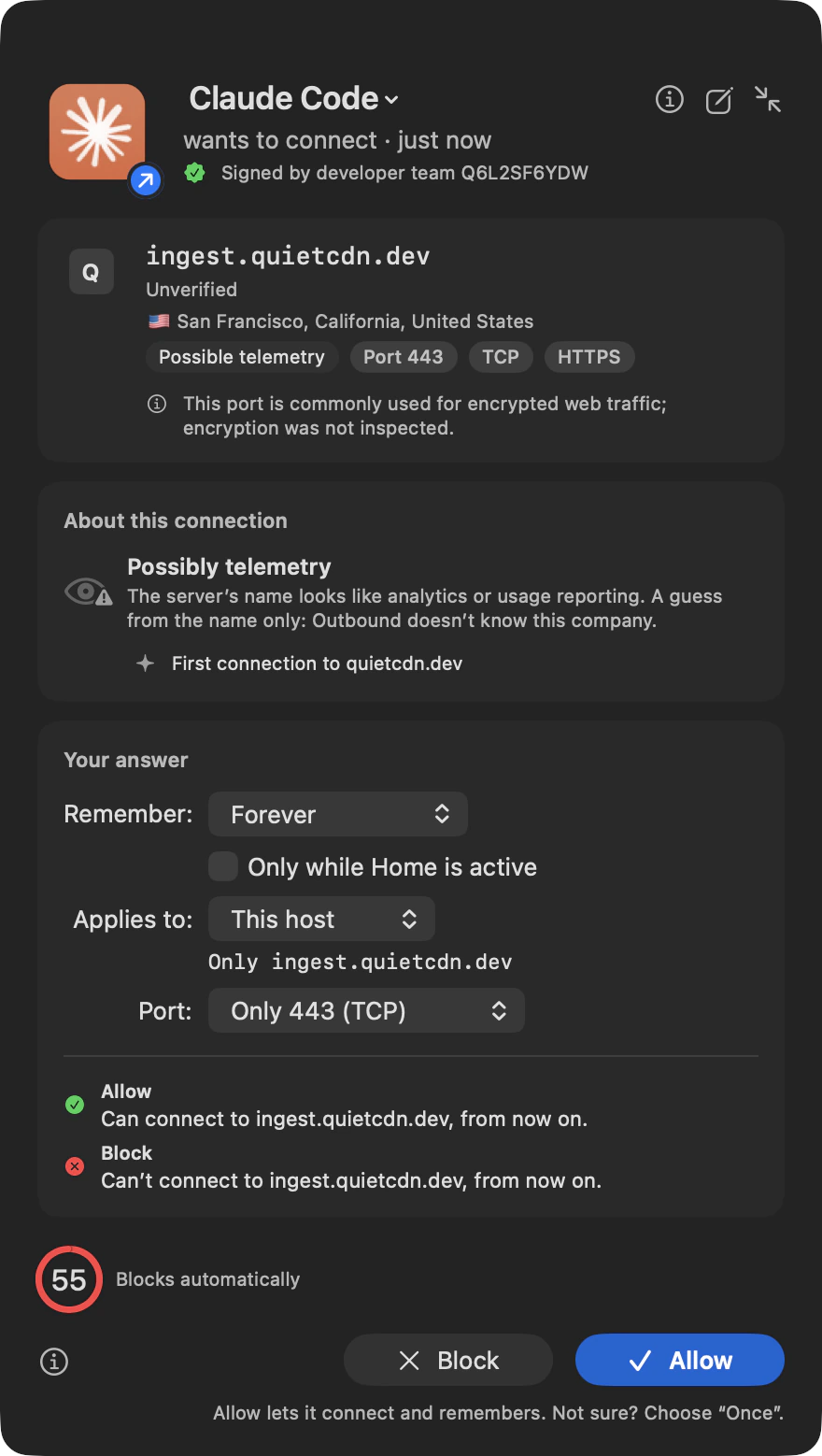
Outbound shows where Claude Code is connecting, who signed it and whether the server’s name suggests telemetry, as it does for any app. Block one host for one agent, and the others keep working.

Personal covers 2 Macs. Family covers 5.
See pricingTelemetry
Telemetry, off at the source.
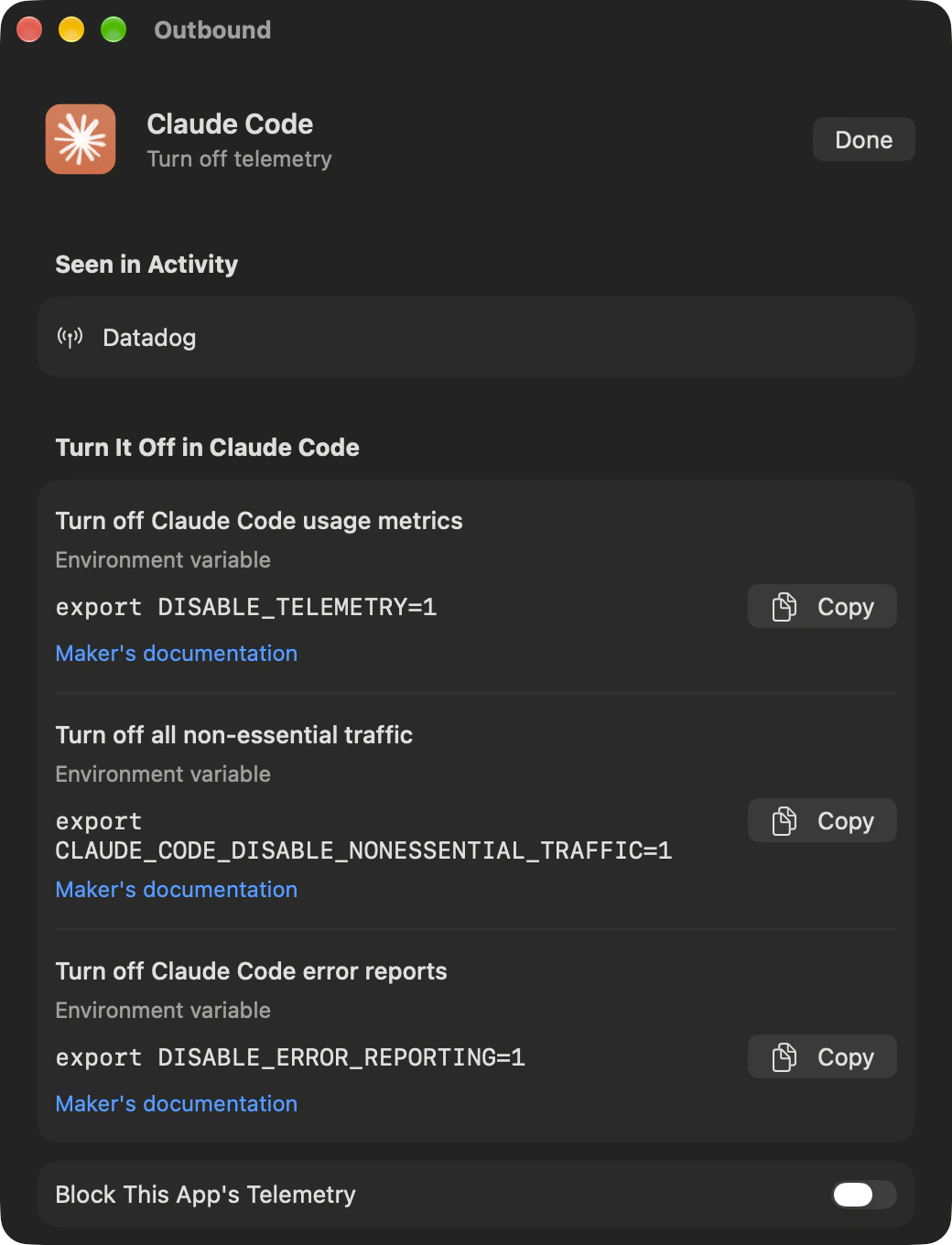
For popular apps and developer tools, Outbound lists the servers each one reports to and the settings that turn reporting off, ready to copy. Or block those servers with one switch.

Personal and Family include all 1.x and 2.x updates.
See pricingYour rules
Type a rule, check the fields.
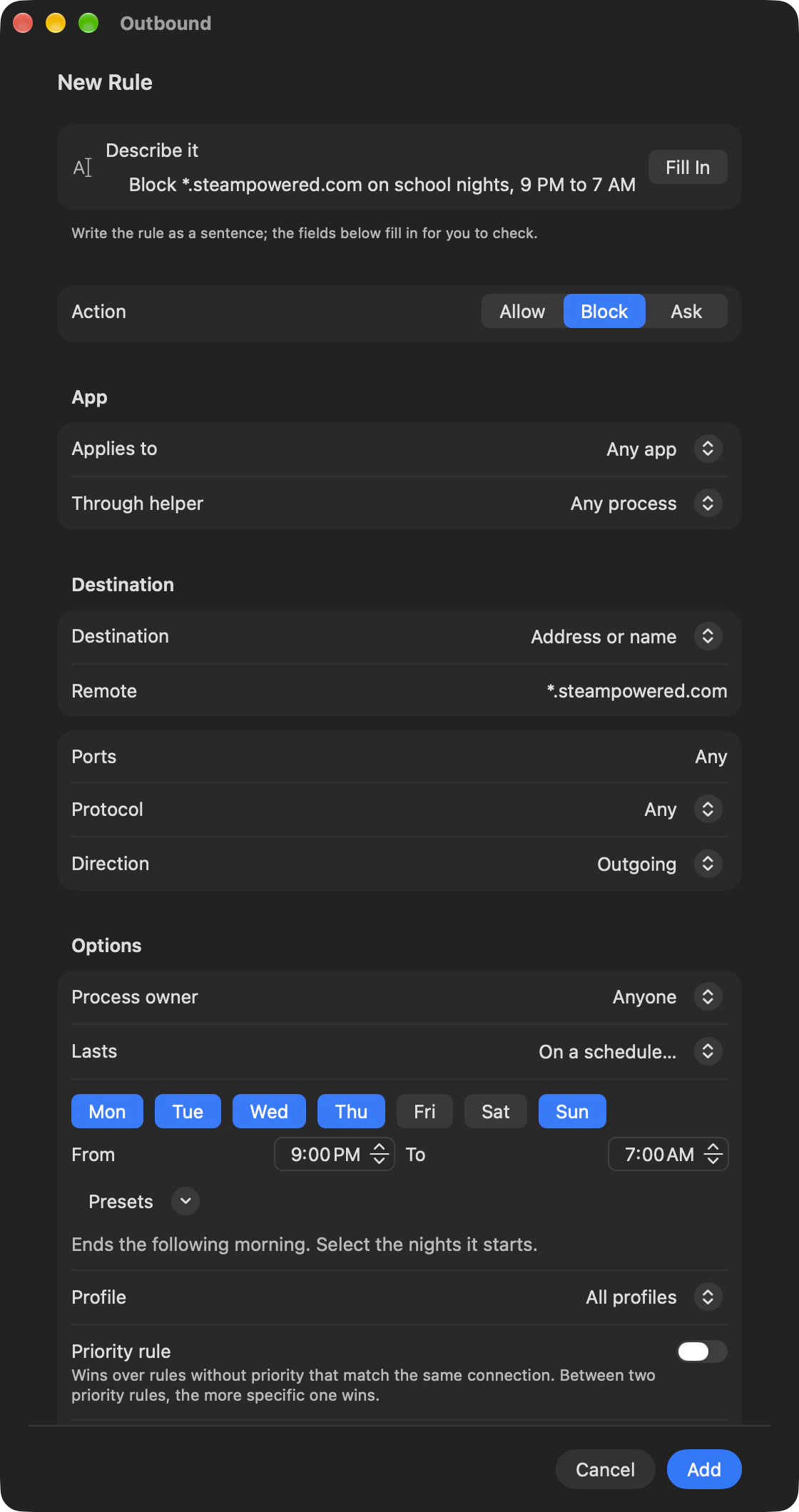
Type “Block *.steampowered.com on school nights, 9 PM to 7 AM” and Fill In sets every field for you to check.

Personal and Family have a 14-day full refund.
See pricingOne click away
All of it from the menu bar.
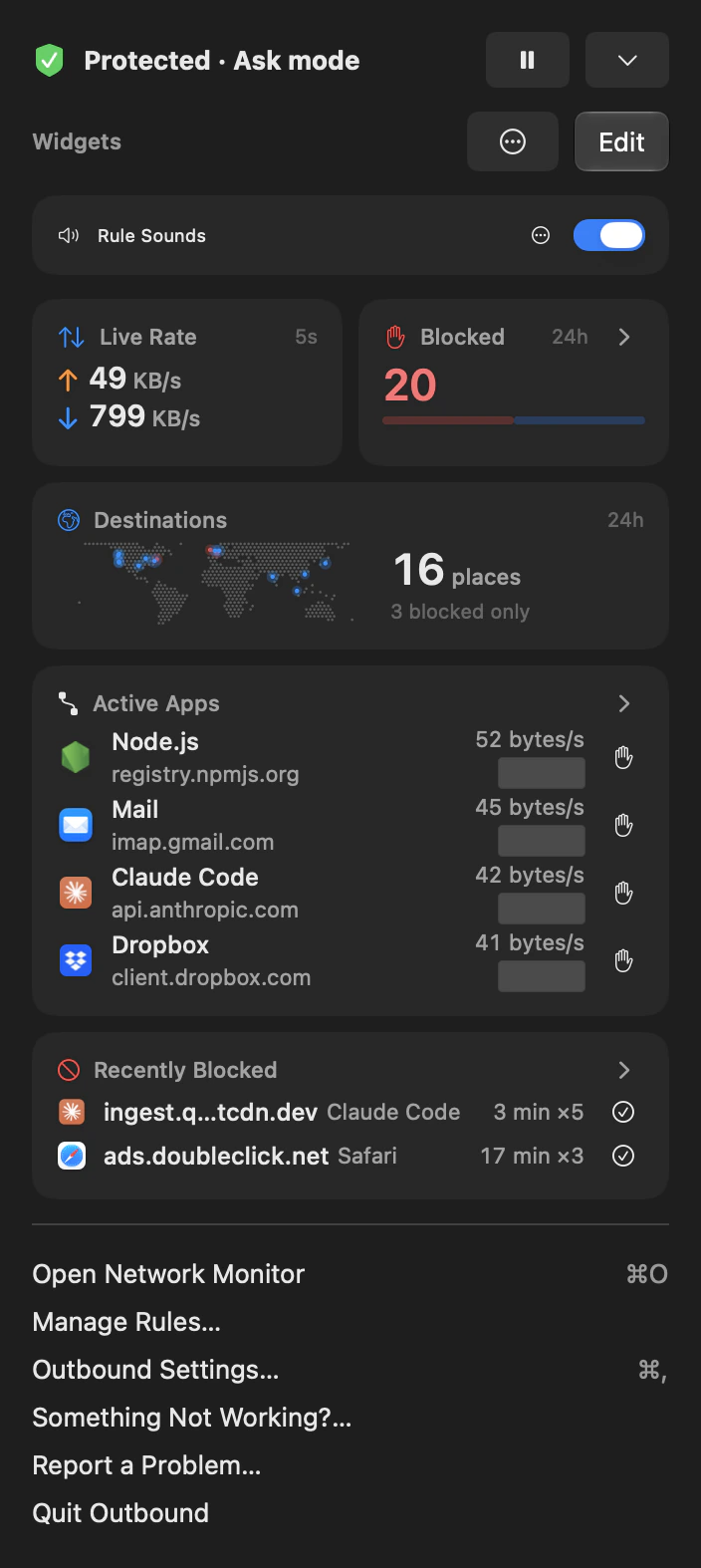
The menu bar panel holds Control Center: widgets for live traffic, the last 24 hours, blocked connections, DNS and your profile. Open it as its own window and give it a shortcut.

Personal covers 2 Macs. Family covers 5.
See pricingNetwork Monitor
Flat map or 3D globe.
The Network Monitor map comes in 2D and 3D, with Standard, Muted and Satellite styles from Apple Maps, and a Dots style Outbound draws itself.
Arcs run from your Mac to every city your apps reach, on a flat map or a 3D globe. Blocked destinations show in red.

Personal and Family include all 1.x and 2.x updates.
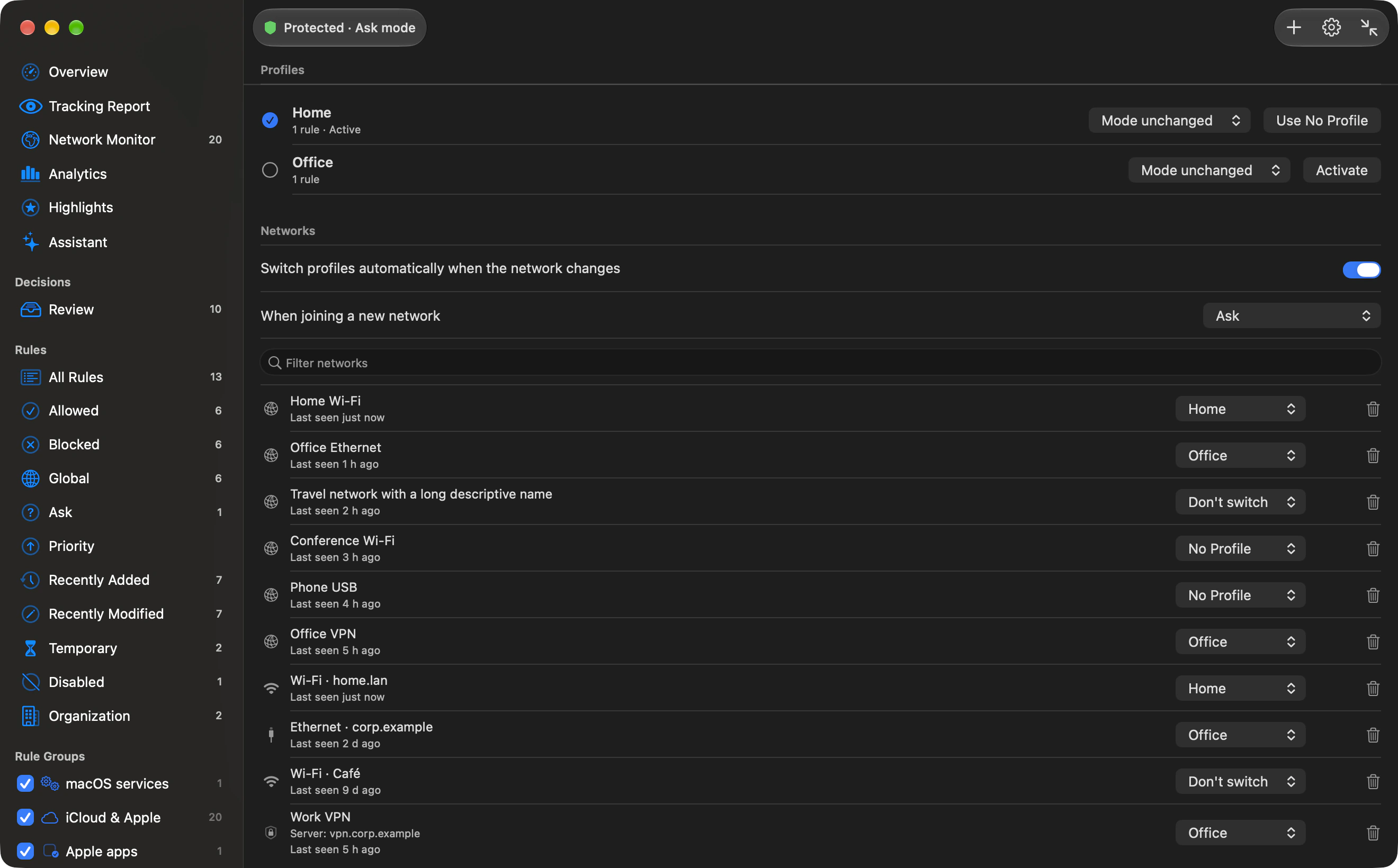
See pricingProfiles
Rules for each place you work.
Group rules into profiles such as Home and Office. Join a network and Outbound can switch for you.
Outbound knows a network by its router, never by the Wi-Fi name, so it needs no location access. A profile can change the mode too.

Deploy Outbound with your MDM.
Outbound for ITNetwork Monitor
Your traffic, on a map.
Arcs run from your Mac to every city your apps reach, on a flat map or a 3D globe. Blocked destinations show in red.
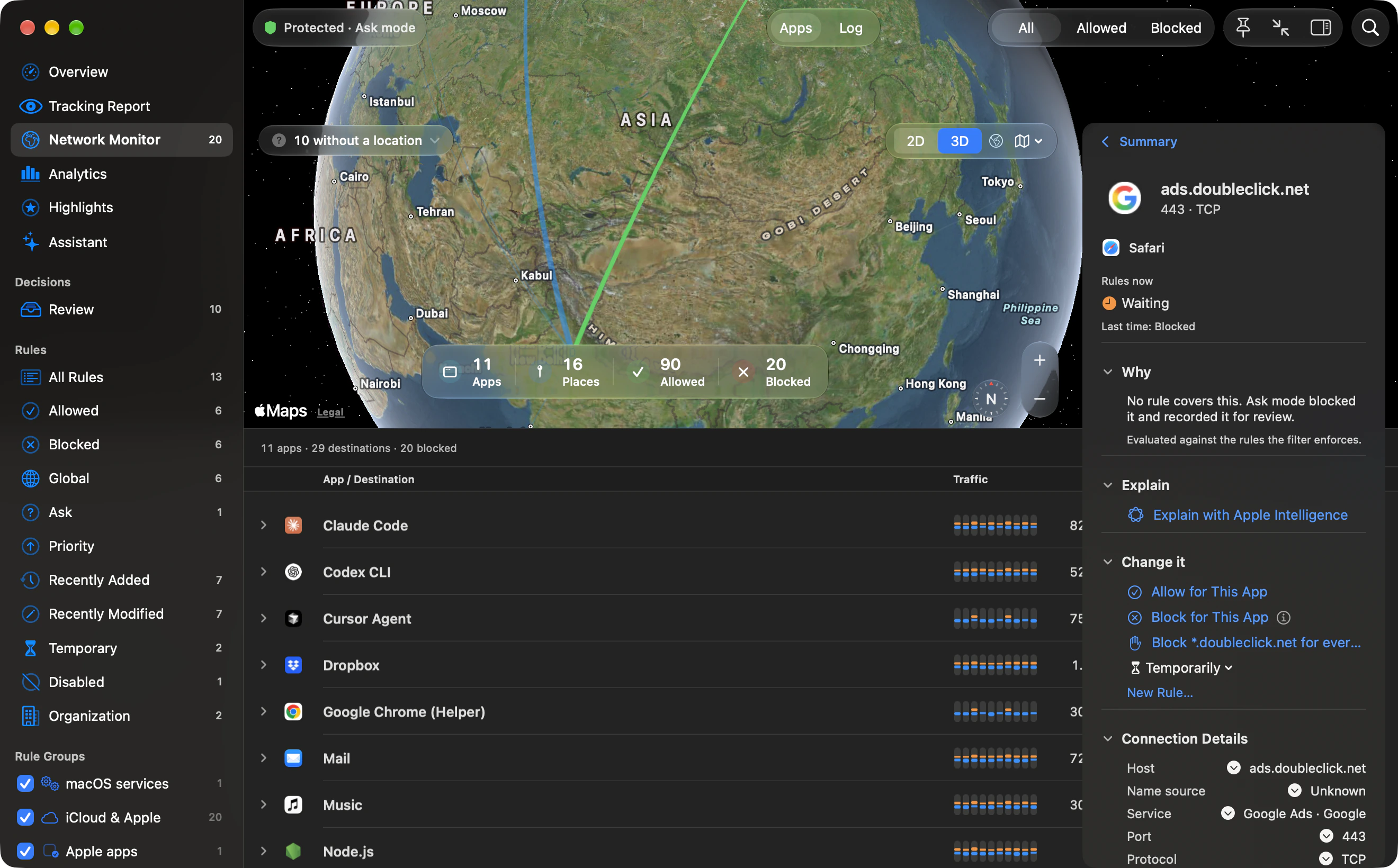
- Why, in plain words. The inspector names the rule or the mode that decided each connection.
- Explained on your Mac. On macOS 26 or later with Apple Intelligence turned on, Explain suggests what a server is probably for. It’s a suggestion, so check it.
- Changed on the spot. Allow or block a host for one app, or a whole domain for every app, from the same panel.
- From a minute to a year. Data sent and received, charted under the list, from the last minute to the last year.
How it works
One layer between your apps and the internet.
Outbound is a content filter in macOS, so every new connection passes it once. Most go through, some stop, and in Ask mode one waits for you.
Features
How Outbound decides.
Choose the app, the destination and how long the rule lasts.
One app, one row. Background helpers sit under the app they belong to. A browser running a dozen processes shows up as one row.
Rules like sentences. A rule spells out the app, the host, the port, how long it lasts and where it came from. Priority rules override all the rest.
Eleven lifetimes. Allow or block it once, for 5, 15 or 30 minutes, an hour, a day or a week, until the app quits, until you log out, until your Mac restarts, or forever.
Checked on your Mac. Outbound checks each connection on your Mac, and the record stays there. Crash reports and usage stats are off until you turn them on.
Learn, Ask, Strict. Learn allows and keeps a record, Ask checks with you first, and Strict blocks anything that has no rule. Your rules apply in all three, and the menu bar switches between them.
- 11ways to remember an answer
- Once, for 5 minutes to a week, until the app quits, until you log out, until restart, or forever.
- 2Mentries a blocklist can hold
- Choose from 60 lists or add your own over HTTPS. If an update fails, the last good copy stays.
- 0accounts
- There’s nothing to sign up for.
Up close
More than a firewall.
Reports, answers and a score, worked out on your Mac from your own history.
Tracking Report
Which apps talk to trackers.
By app or by company, for the last hour up to everything since install. Open an app to see each tracker server it contacted, and, where it’s safe, block that app’s trackers with one switch.
Trackers and Highlights
Assistant
Ask about your network.
Ask in plain words and get an answer from the records Outbound already has, with a chart and the records behind it. By default it runs on your Mac with Apple Intelligence.
Intelligence
Highlights
A privacy score, and your year.
Today’s score out of 100 from protection, trackers blocked and Review. Year in Review plays your year as six pages you can share.
See Highlights
Notch island and menu bar
First contact, at the top of the screen.
When an app reaches a new country, a capsule grows out of the notch, names who went where and draws the route. Beside the menu bar meter, a tiny world threads each place reached in the last seconds.
Labs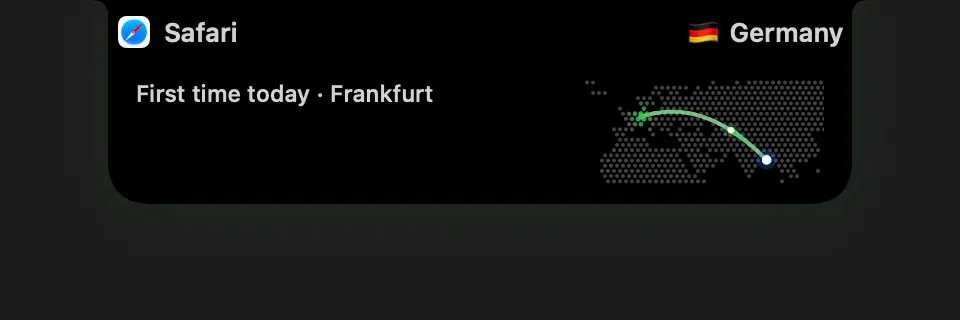
Map and globe
Your traffic on a world you can turn.
Arcs from this Mac to every place your apps reach, on a dotted map or a 3D globe. Grab it, let go and it coasts. Five themes, from Graphite to Amber.
Network Monitor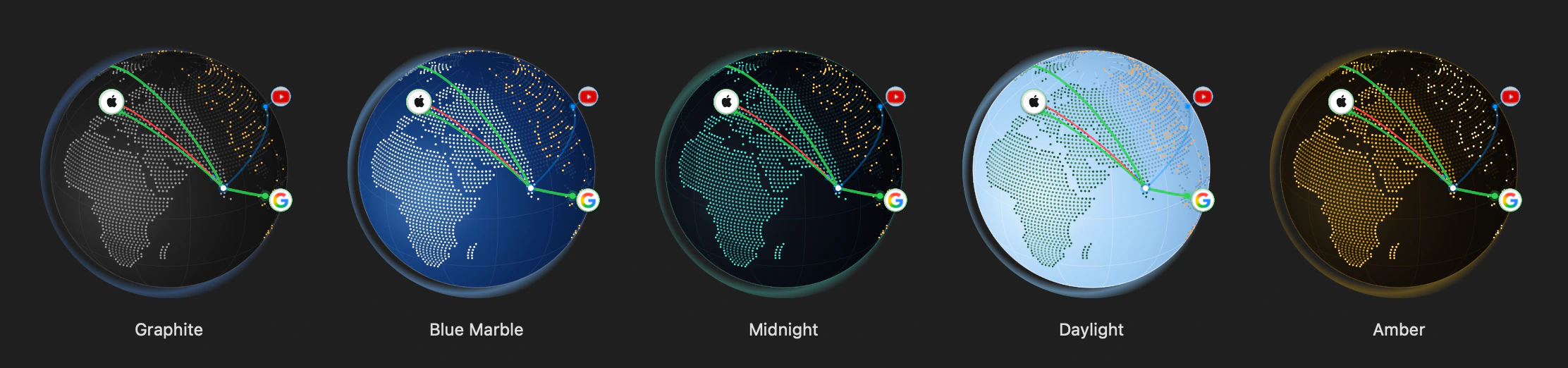
Architecture
Built on Apple’s own filter.
A Network Extension content filter. No kernel extension. No DNS proxy. It sees connections, never their contents. A transparent proxy runs only for apps you give a speed limit.
Built to be checkedPrivacy and safety
Private by design. Safe to run.
Privacy
- Kept on your Mac. Your rules and history stay on this Mac. History is encrypted, with its key in your Keychain. Optional AI features get figures only after you turn them on.
- Diagnostics off by default. Crash reports and usage stats stay off unless you turn them on.
- Locations found offline. Server locations come from a database on your Mac.
- No DNS proxy. Outbound filters through Apple’s content-filter API, built to run alongside VPN apps and iCloud Private Relay. A transparent proxy runs only for apps you give a speed limit.
Safety
- Apple software, verified. Trusted only when Apple signed it and it runs from a location macOS protects.
- Questions time out. Leave one unanswered and, by default, the connection goes through and waits in Review.
- Rules you can undo. Each rule lasts as long as you chose, and importing keeps a backup of your old set.
- A way back. If something stops working, pause Outbound from the menu bar.
Compared
Outbound and Little Snitch, side by side.
If you’re weighing Little Snitch, here’s how the two line up.
Feature OutboundLittle Snitch
Price$29USD for the first 50 Personal licences, then $39€59EUR, single licence
Major updatesYesIncluded through 2.xNoPaid upgrade
Asks about new connectionsYesYes
Rules by app, host and portYesYes
Traffic mapYesYes
Profiles that follow your networkYesYes
Managed MacsYesMDM, rule feed, sealed audit logYesRemote rule groups
Why Outbound. The fine print, up front.
See pricing29 US dollars Pay once.
USD for the first 50 Personal licences.
Version 2.x Updates included.
Every 1.x and 2.x update.
Zero Accounts.
Nothing to sign up for.
14 Days to change your mind.
A full refund for Personal and Family.
5 Macs with Family.
Personal covers 2 Macs.
MDM Ready for managed Macs.
Rule feeds and sealed audit logs.
Personal and Family
Pay once. Tax included.
Personal is $29 USD for the first 50 licences, then $39, paid once for 2 Macs. Family is $59 USD, paid once for 5 Macs. Prices include tax.
Teams licences are one seat per Mac, billed yearly, with a quote within 2 business days.
Personal and Family have no subscription.
See pricingIncluded updates
All 1.x and 2.x updates.
Personal and Family licences include every 1.x and 2.x update.
We haven’t announced pricing or eligibility for later major versions, and we don’t promise lifetime upgrades.
Personal and Family are paid once, tax included.
See pricingKey by email
No account to create.
You don’t need an account. Your licence key arrives by email right after checkout.
There’s no trial: the download is the full app, and it opens with that key.
Personal and Family have a 14-day full refund.
See pricing14-day refund
Try it on your own Mac.
Email support@outboundfirewall.com within 14 days of purchase for a full refund. Include the order number from your purchase email.
Personal and Family are one-time purchases, and both get the same 14-day full refund. Teams prices and terms are set by quote, so the Personal and Family refund policy doesn’t cover Teams.
There’s no trial. The download is the full app.
Read the refund policyFor the Macs at home
One Family licence. 5 Macs.
One Family licence covers 5 Macs at home. Personal covers 2.
Both include all 1.x and 2.x updates, with no subscription.
Family is $59 USD once, tax included.
See pricingOutbound for IT
Ready for managed Macs.
Outbound gives Mac administrators managed preferences, an HTTPS rule feed, and audit logs copied to a folder or sent to your SIEM. The network filter writes a sealed JSON Lines log.
Teams licences are per seat, billed yearly.
Outbound for ITPricing
Pay once. First 50 licences: $29.
Personal and Family are paid once, tax included. Personal covers 2 Macs and Family covers 5. Teams is billed yearly.
Personal
Founding price$29$39USD
one time
For the first 50 licences, then $39.
- 2 Macs
- Per-app and per-host rules
- Network Monitor, map and Review
- Profiles and blocklists
- Command-line control
- All 1.x and 2.x updates
Family
5 Macs$59USD
one time
One licence for the Macs at home.
- Everything in Personal, on 5 Macs
- All 1.x and 2.x updates
- No subscription
Teams
Per seatLet’s talk
One seat per Mac, billed yearly. A quote within 2 business days.
- MDM configuration profiles
- Managed rule feed over HTTPS
- Optional SHA‑256 pinning
- Audit export and SIEM delivery
Key by email. Your licence key arrives right after checkout.
Pay once. Personal and Family have no subscription, and you don’t need an account.
Updates included. All 1.x and 2.x releases.
Tax included. The price you see is the price you pay.
Checkout couldn’t start. Try again in a minute, or email support@outboundfirewall.com.
If Outbound isn’t for you, you can get a full refund within 14 days. Dodo Payments, the merchant of record, runs checkout. Questions before you buy? Email support.
Outbound essentials.
All guides


Questions
The short answers first. Every window, setting and command is in the manual.
- Price
- $39 once for 2 Macs. The first 50 licences are $29.
- Refund
- Full refund within 14 days of purchase.
- Runs on
- macOS 14 or later, Apple silicon or Intel.
- Analytics
- Off by default. Rules and logs stay on your Mac.
Read the full FAQOpen the manual
Still asking? Send us a message and we’ll reply by email.
Contact supportDoes the built-in macOS firewall block outgoing connections?
No. Apple’s firewall settings control incoming connections. Outbound filters outgoing ones, per app and destination, so the two do different jobs.
Can I see what Claude Code, Codex or Cursor connect to?
Yes. To Outbound, a coding agent is an app like any other. Each one appears under its own name and icon, even when it runs from a versioned folder or a bundled Node.js, along with the hosts it reached and the bytes it sent to each. In Ask mode, Outbound asks you before an agent connects somewhere new, and a rule can block one agent from one host while the others keep working. The AI Agents and Coding Tools filter lists your AI apps and anything that talks to an AI service.
Is there a free trial?
No. You pay once and get a licence key by email. The download is the full app, and it opens with that key. If Outbound isn’t for you, you get a full refund within 14 days of purchase.
How much does Outbound cost?
A personal licence is $39 USD, paid once, and covers 2 Macs. The first 50 licences are $29. A family licence is $59 USD for 5 Macs. Licences include all 1.x and 2.x updates. There’s no trial, but you can get a full refund within 14 days of purchase.
What happens when I don’t answer an alert?
In Ask mode, unanswered connections are allowed after 8 seconds for UDP or 60 seconds for TCP by default, then added to Review. You can change the wait (15–120 seconds for TCP) or have unanswered connections blocked. Strict mode blocks connections that have no matching rule.
Does Outbound collect analytics?
Only if you turn it on. Anonymous crash reports and usage stats are off by default, and you can turn them on in Settings. Your rules, settings and audit logs are stored on your Mac. The app fetches the blocklists you add and, on managed Macs, the rule feed your administrator sets. A cloud model you add for the Analytics overview gets figures only after you turn on Send figures to it. Administrators can export audit logs to a destination they choose.
Which Macs does Outbound require?
macOS 14 Sonoma or later, including macOS 15, 26 and 27, on Apple silicon, and on Intel Macs up to macOS 26. On a macOS newer than 27.2, Outbound asks you to update it. Explain and the Assistant’s free-form questions need Apple Intelligence on macOS 26 or later.
Can I allow an app but block some of its hosts?
Yes. Outbound rules combine an app with a host, domain, IP address, network range or local network, plus ports and protocol. A domain rule also covers its subdomains. If the app connected by name you see the hostname; if it didn’t, Outbound shows the address.


Choose where your apps connect.
Outbound is $29 for the first 50 licences, then $39. Either way, you pay once.
- 2 Macs, or 5 with Family
- One-time, no subscription
- Full refund within 14 days
- macOS 14 or later